When creating users in the server, the administrator can add and setup MFA (multi-factor authentication) to users. This can be done by logging in as the user and setting up MFA.
Logging in as the administrator > Go to the Users Tab and select the user you want to add MFA for.
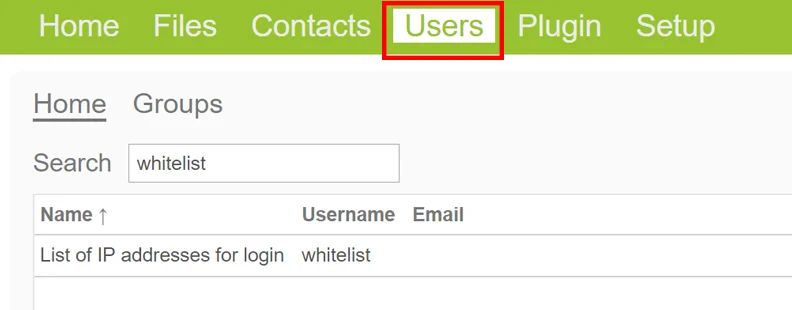
Once you open the user’s settings, scroll down to the user’s options and make sure that they are not a managed user.
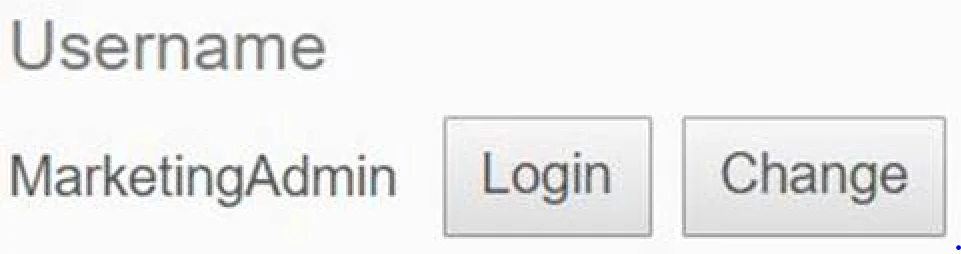
Then click on the login button beside the username to login as the user.
With the syntax created in the username field “[admin’s username]/[user’s username]” you can use your admin password to login as the user.
Then click on the login button beside the username to login as the user.
With the syntax created in the username field “[admin’s username]/[user’s username]” you can use your admin password to login as the user.
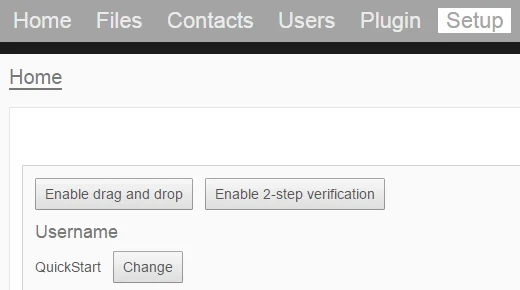
Once logged in as the user > Go to the Setup tab and click on “Enable 2-Step Authentication”.
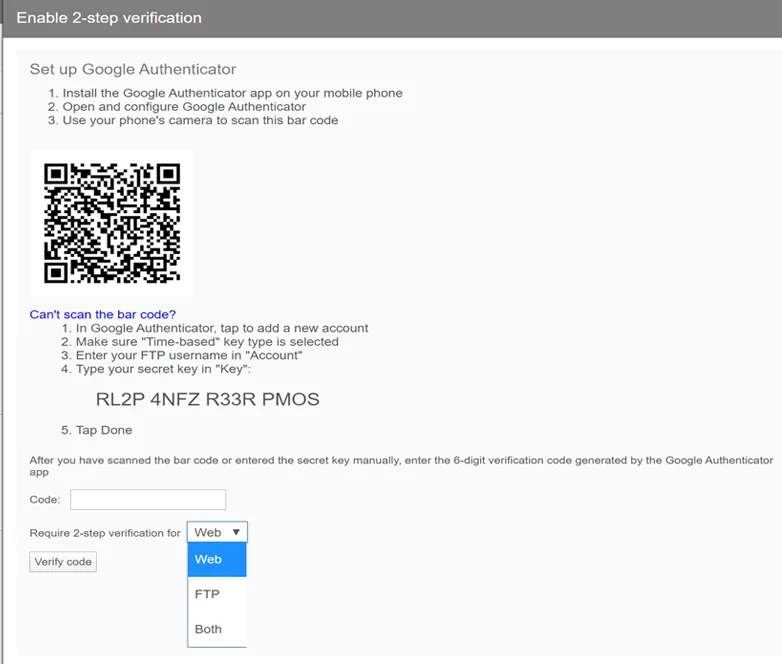
Click on the “Can’t scan the bar code?” hyperlink to open further instructions.
Copy the key generated (or screenshot entire instructions) and give the static key to your user’s Google multi-factor authentication. (i.e. in the image RL2P 4NFZ R33R PMOS)
In the drop-down menu select whether you want to have MFA enabled for only web browser, FTP connection (i.e. FTP client), or both.
The admin (and user) can retrieve a 6-digit code from their MFA (refreshes every 30 seconds) to login to their account.
Note: The user’s MFA will not be active until added to a Google authentication app (whether that be the admin or user). In this case, the admin will have a list of MFA codes for each user.
Note: The user’s MFA will not be active until added to a Google authentication app (whether that be the admin or user). In this case, the admin will have a list of MFA codes for each user.
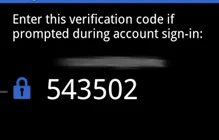
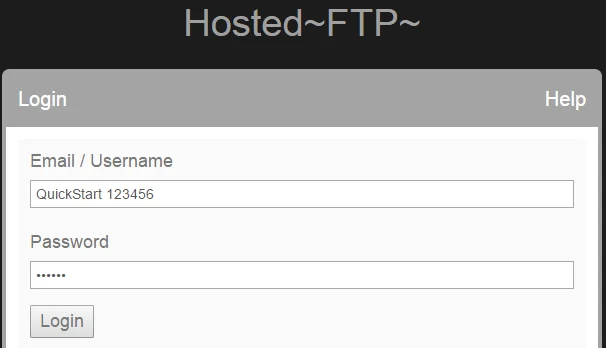
Open the Hosted~FTP~ login page in your browser and enter your email or username and then the 6-digit code and then your regular password. This will then complete the 2-Factor authentication login sequence.
Note: Follow the same login steps for using an FTP client as well. The 6 digit code is entered with your:
Hostname, username xxxxxx, password
Note: Follow the same login steps for using an FTP client as well. The 6 digit code is entered with your:
Hostname, username xxxxxx, password
Now login back as the administrator and mark the user back to a managed user. This will prevent them from changing their own password, email, and change the MFA.