Multi-Factor authentication (MFA) is used to provide an additional level of security by having to synchronize a random code generated on your mobile device during the Login sequence. Non-managed users (have access to their Setup tab) can setup their own MFA to be required when logging in via web, FTP/SFTP, or both. For managed users (no access to Setup tab), the Administrator can setup the MFA for them.
MFA Setup Steps#
Steps
Instructions
Install Google Authenticator
Download the Google Authenticator application for your mobile device. Google Play Store
Install bar code scanner
Install a bar code scanner if you do not already have one. This application will read the bar code on the Hosted~FTP~ account.
Enable MFA on the Hosted~FTP~ account
After you login to your account go to the Setup tab and click on “Enable 2-Step Authentication”.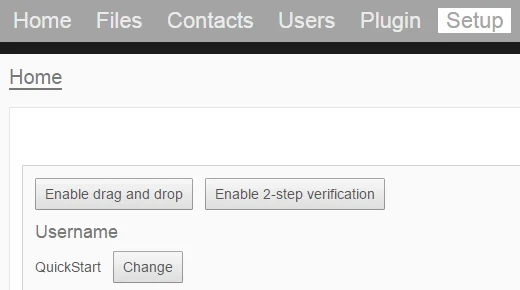
Follow the setup instructions
The image below shows you how: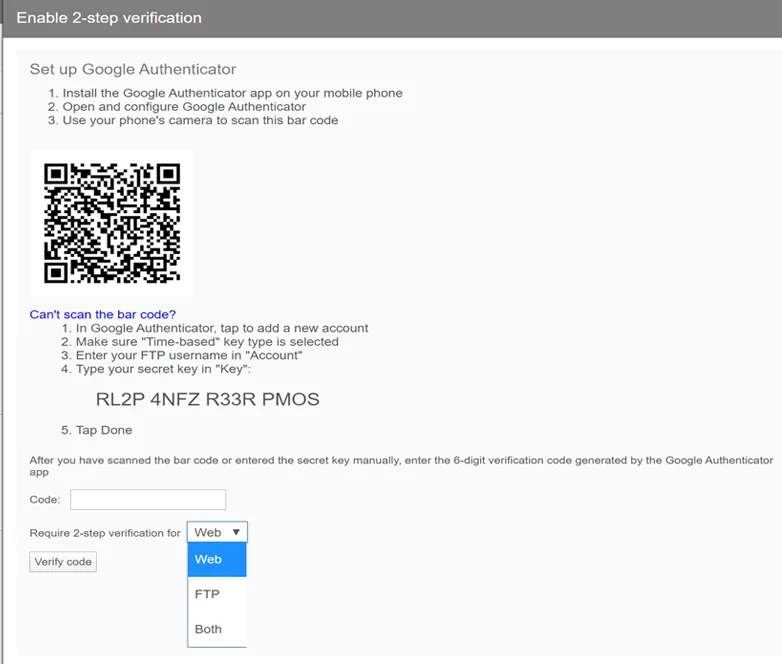
Retrieve the MFA code
When 2-Factor is enabled retrieve the 6 digit verification code from the Google authenticator app on your device (changes every 30 seconds)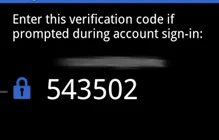
Login with 2-Step (MFA) enabled
Open the Hosted~FTP~ login page in your browser and enter your email or username and then the 6 digit code and then your regular password. This will then complete the 2-Factor authentication login sequence.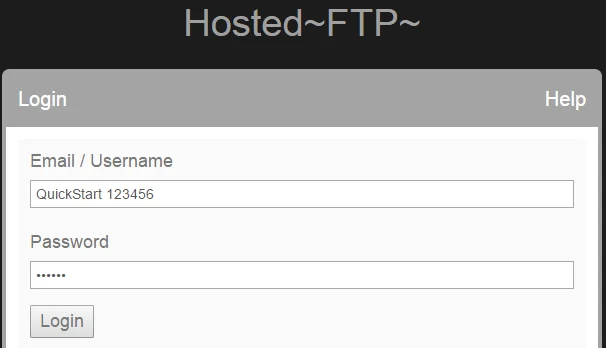 Note: Follow the same login steps for using an FTP client as well where the 6 digit code is entered with your:
Hostname, username xxxxxx, password
-